Your external drive is plugged in. The little LED is blinking. And Windows shows… nothing. Not in File Explorer, not on the desktop. You open Disk Management expecting answers and find an empty list, or a disk labeled "Not Initialized" that you're terrified to touch because the last time you clicked something in that window, a friend lost a photo archive.
I know that feeling. I've been the friend who clicked wrong. So before you format anything, let's walk through how to fix an external hard drive that isn't detected in a way that keeps your data where it belongs: on the drive.
Key takeaways
- A drive that shows up in Device Manager but not in File Explorer is usually a partition or drive-letter problem, not a dead disk.
- Any clicking, beeping or spinning-up-and-down noise means stop now and unplug it. That's a physical fault.
- Never click "Initialize Disk" or "Format" before you know whether the data matters.
- Windows and macOS both have a built-in tool for assigning a letter or mounting a volume — you rarely need third-party software.
- If the drive works on another computer, the problem is your port, cable or hub, not the drive.
First, diagnose why your external hard drive is not detected
The single most useful thing you can do is stop guessing and find out where the drive disappears. There are four checkpoints between "cable plugged in" and "folder open on screen," and the fix is different at each one.
The four checkpoints
- Physical connection — does the operating system see any new hardware at all?
- Device Manager (Windows) or System Information (Mac) — is the disk listed as a device?
- Disk Management / Disk Utility — is the disk visible but without a partition or letter?
- File Explorer / Finder — the final step, where the volume gets mounted.
Where it drops out tells you what to do. A drive missing at step one has a cable or port issue. A drive present at step two but absent at step three may have a partition table problem. A drive present at step three but not step four almost always just needs a drive letter.
The noise test
Before any software: put your ear near the enclosure. A healthy 3.5-inch desktop drive spins up once and settles into a faint hum. A 2.5-inch portable drive is nearly silent. What you do not want to hear is rhythmic clicking, a repeated beep, or the drive spinning up and down in a loop. Those are mechanical failure sounds. Unplug it and stop. No software fixes a stuck read head, and every extra minute of power-on makes professional recovery harder.
Step-by-step fixes for a drive that is not showing up
Work through these in order. The cheap, boring ones come first because they solve more cases than any advanced trick.
1. Swap the cable and the port
Try a different USB cable, then a different port on the computer itself, not on a hub. This matters more than people think: bus-powered portable drives draw their current from the port, and an unpowered hub splits that current among everything plugged into it. I once chased a "dead" 2 TB drive for twenty minutes before realizing it was sharing a hub with a webcam and a phone charger.
Desktop-sized enclosures with a power brick are a separate case. If the brick's LED is dark, test the outlet and the adapter before blaming the disk.
2. Check Device Manager
Press Windows + X and open Device Manager. Expand "Disk drives" and "Universal Serial Bus controllers." If your drive appears with a yellow warning triangle, right-click it and choose "Uninstall device," then unplug and replug the drive. Windows reinstalls the driver on reconnect. On macOS, hold Option and click the Apple menu, then System Information, and look under USB or Thunderbolt.
3. Assign a drive letter in Disk Management
Right-click the Start button and pick Disk Management. Look for a disk whose size matches your external drive.
- Visible with a blue bar but no letter — right-click the volume, choose "Change Drive Letter and Paths," add one. Done. This is the most common cause of "detected but not showing up."
- Visible as "Unallocated" — the disk has no partition. Do not create one yet if the data matters.
- Visible as "Not Initialized" — same warning. Initializing writes a new partition table and can make existing data much harder to reach.
- Not visible at all — the disk isn't reaching Windows; go back to cable and port.
4. The command-line route
If Disk Management refuses to assign a letter, open Command Prompt as administrator and type diskpart. Then list disk, select disk N (where N is your external disk — check the size twice), list partition, select partition N, and finally assign letter=G. Choose a letter that isn't already in use.
Be careful in diskpart. There is no undo, and clean erases the partition table instantly.
Why is my external hard drive not showing up but detected?
This is the most frequent version of the problem, and the answer is usually mundane: the disk is fine, the volume just isn't mounted.
Three things cause it. A missing or conflicting drive letter, a file system Windows can't read (a Mac-formatted drive, for instance), or a volume that was never properly formatted in the first place — which happens with bare drives sold without an enclosure.
The Mac drive on Windows problem
If the drive was formatted on a Mac with Apple's own file system, Windows sees the hardware but cannot mount the volume, so nothing appears in File Explorer. Disk Management will usually show the partition without a letter and without a recognized file system. Reading it on Windows generally requires third-party software; the reverse direction is easier, since macOS reads common Windows formats without help.
| Symptom | Most likely cause | First thing to try |
|---|---|---|
| Nothing anywhere, no LED | Power, cable or port | New cable, direct port, test power brick |
| In Device Manager, not in Disk Management | Driver or USB controller issue | Uninstall device, replug |
| In Disk Management, no letter | Unmounted volume | Assign a drive letter |
| In Disk Management as Unallocated | Partition table lost or never created | Stop. Assess data first |
| Clicking or beeping | Mechanical failure | Unplug, seek professional recovery |
How do I get my PC to recognize an external hard drive?
Start at the bottom of the stack and work upward. Plug the drive directly into a rear USB port on a desktop — those are usually soldered to the motherboard rather than fed through an internal hub. Then restart the machine with the drive connected. A full restart re-enumerates USB devices in a way that a sleep-wake cycle often doesn't.

If it still doesn't appear, check the BIOS or UEFI firmware. Enter it at boot (usually Delete or F2) and look for the drive in the storage list. A drive visible in firmware but not in Windows points squarely at a driver or file system issue. A drive invisible even in firmware points at hardware.
What about Seagate or WD drives specifically?
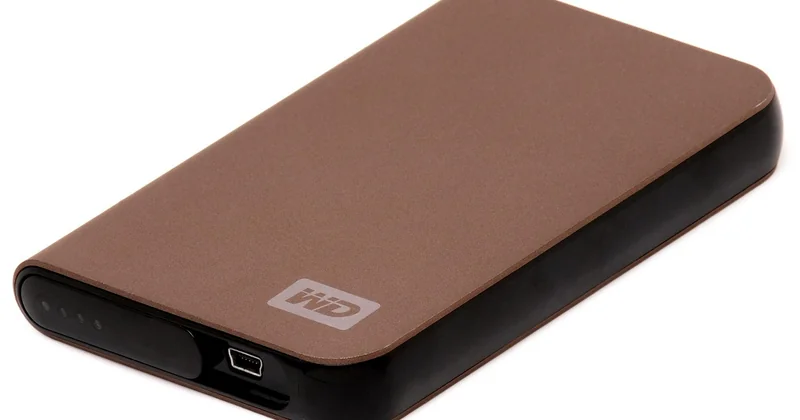
Brand doesn't change the diagnosis. Seagate and Western Digital both ship drives that behave exactly like any other USB mass storage device. Two brand-specific notes are worth knowing, though. First, some Seagate portable models use a USB connection soldered directly to the drive's circuit board rather than a standard SATA-to-USB bridge — which means the usual trick of pulling the bare drive out and putting it in a different enclosure doesn't work on those units. Second, bundled software suites from either brand can occasionally interfere with mounting; uninstalling them temporarily is a valid test.
How to repair an external hard disk not detected without formatting
Formatting is the nuclear option, and it's almost never the first move. If the disk appears in Disk Management at all, you have options that don't touch your files.
Run a read-only check first
Once the drive has a letter, open Command Prompt as administrator and run chkdsk X: /f where X is your drive letter. The /f flag fixes file system errors. If chkdsk reports bad sectors, that's a warning sign about the disk's health, not just its file system.
Check the drive's health
Free tools like CrystalDiskInfo read the drive's own SMART data — the internal counters that track reallocated sectors and spin-up problems. A drive with a failing SMART status should not be trusted with anything you care about, even if it mounts fine today. Copy the data off first, then replace the drive.
When to stop and call a professional
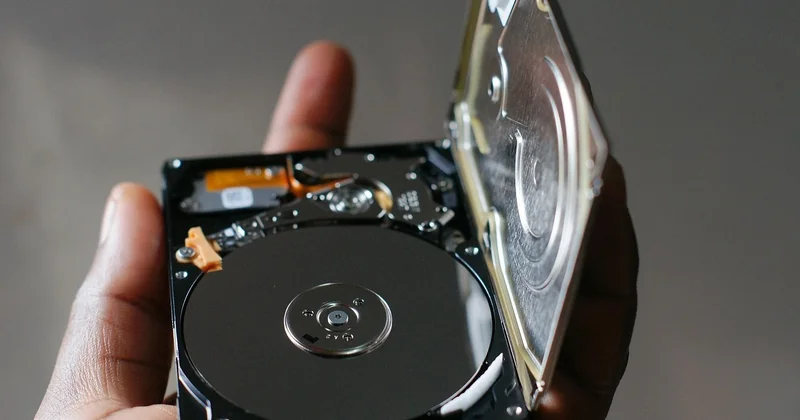
If the drive makes mechanical noise, if it disappears mid-copy, or if the data is genuinely irreplaceable — business records, family photos with no backup — professional recovery is the honest answer. It isn't cheap, and prices vary hugely by country and by damage type, but the alternative is often permanent loss. Do not open the enclosure yourself. Even a speck of dust inside a hard drive enclosure can damage the platters.
One last thing on this front: recovery software and recovery services are different products. Software helps when the disk spins and the partition table is broken. Services help when the hardware is failing. Mixing them up wastes money.
Why isn't my external hard drive showing up on Mac?
The logic is the same, but the tools are different. Open Disk Utility (in Applications, then Utilities) and check whether the disk appears on the left. If it does but is greyed out, select it and click Mount.
Three Mac-specific culprits worth checking:
- Finder is set to hide external disks. Open Finder settings, General tab, and confirm "External disks" is ticked.
- The drive is formatted in a file system macOS can't read natively, such as a Windows-only format.
- The drive is a Time Machine volume that macOS has mounted but not shown in the sidebar.
A note about hubs and docks
Modern laptops with only USB-C ports push people toward docks, and docks are where portable drives often fail to mount. A dock that provides power delivery to the laptop and hosts a monitor and three other devices may not leave much headroom for a spinning disk. Plug the drive straight into the laptop once as a test. If it mounts, you've found your culprit.
The frustrating part of all this is how often the answer turns out to be a $6 cable or a drive letter nobody assigned. Which is a strange kind of good news. The dramatic cases — the clicking, the beeping — are the rare ones, and they're the ones where doing less is the right move. Everything else is usually a matter of finding the checkpoint where the drive fell off the map, and walking it back from there.