You plug in a flash drive, hear the little Windows chime, and… nothing. No drive letter, no pop-up, not a single trace in File Explorer. Or worse: the machine makes the "device connected" sound, then the "device disconnected" sound a second later, over and over, like it's taunting you.
I've hit this wall more times than I'd like to admit, on my own desktop and on machines I was repairing for friends. The part that frustrated me early on was the guessing: I'd reinstall drivers, reboot twice, and half the time the problem was a cable so worn that the data pins had stopped making contact while the power pins still worked fine. Power is not the same as data, and that distinction is where most people lose an afternoon.
This guide is a decision tree, not a list of random things to try. Each step tells you what result to expect, so you know whether to move on or stop.
Key Takeaways
- A USB port that supplies power but doesn't detect data usually points to a cable, a pin, or a controller problem—not a driver.
- Test in this order: same device on another port, another cable on the same port, another device on the same port. Each result narrows the culprit.
- If your keyboard and mouse are dead too, you cannot reinstall USB drivers from inside Windows—you need alternate input first.
- Descriptions in Device Manager (yellow triangle, "unknown device", "code 43") tell you which layer of the stack is failing.
- On phones, "USB device not recognized" almost always means the transfer mode wasn't selected or the cable is charge-only.
Why your USB port is not recognizing devices: a five-minute diagnosis
Before touching any software, establish which of four things is broken: the device, the cable, the port, or the computer. Sounds obvious. Almost nobody does it in order.
The narrowing test that saves an hour
Run these four checks back to back and write down the result of each. It takes about five minutes and it eliminates three quarters of the possibilities.
- Same device, different port. If it works elsewhere, the port is the problem. If it fails everywhere, the device or its cable is.
- Different device, same port. Try a USB mouse, a phone, a card reader—anything known to work. If that's detected, the port is alive.
- Swap the cable. Micro-USB and USB-C cables fail at the connector far more often than people expect. A cable used daily at an angle dies within a year or two.
- Try the device on a second computer. Last resort, but conclusive.
Which brings up a real problem: some machines now have all their ports on a single internal hub or one Type-C controller. If that hub stops enumerating, every port dies at once and step 2 tells you nothing. We'll come to that case further down.
Power without data: the symptom worth knowing
A cheap trick I use constantly: plug in a device with a visible LED (a mouse, a small fan, an external drive enclosure). If the light comes on but Windows doesn't see the device, the port is delivering the 5 V line but the two data lines aren't communicating. That rules out a dead port, a dead power rail, and a whole category of driver problems. What's left is a damaged data pin inside the connector, a damaged cable, or a failed USB controller.
Tip: shine a light inside the port. I've found bent contacts, compacted dust, and once a small piece of a broken plug lodged against the back wall. A wooden toothpick and a blast of air fixed a "dead" port that way.
"USB device not recognized": reading the error instead of guessing
Windows is more informative than it looks. Open Device Manager (right-click Start, then Device Manager) and expand the Universal Serial Bus controllers section, plus anything showing a yellow warning triangle.
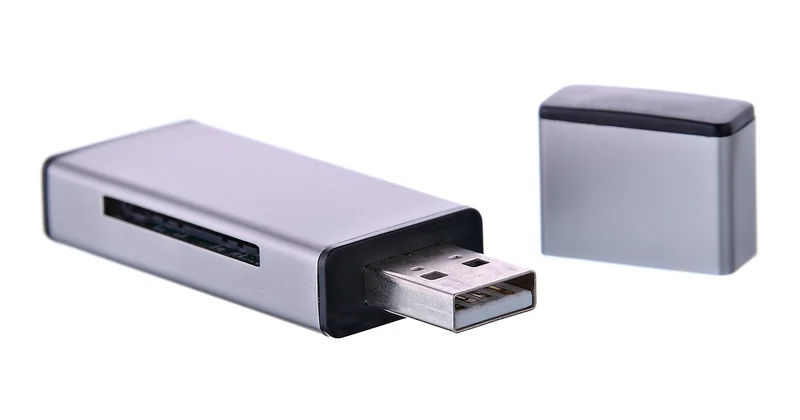
What the Device Manager entries actually mean
- Yellow triangle with "Unknown device" — the port sees something but can't identify it. Usually a cable, a connector, or a power draw issue.
- "This device cannot start (Code 10)" — the driver loaded but the hardware didn't respond. Often a failing device or an underpowered hub.
- "Code 43" — the controller reported a failure. Frequently a driver state problem, sometimes a genuinely failing controller.
- Nothing at all appears — Windows isn't even noticing the insertion. That's a hardware-level symptom, not a driver one.
Honestly, this list is the single most useful thing I learned to check. It tells you whether to spend your time in software or with a screwdriver.
How do I force a USB to recognize?
You can force Windows to re-scan and reinstall the USB stack without a full reboot. Open Device Manager, then from the menu choose Action → Scan for hardware changes and reconnect the device. If that does nothing, uninstall the controller entries under Universal Serial Bus controllers (not the device itself), reboot, and Windows will rebuild them at startup with the drivers already on the system.
One correction to a common piece of advice: you rarely need to download a driver package for a standard USB port. Windows 10 and 11 carry the generic host controller drivers. Downloading a "USB driver" from a third-party site is, in my view, a waste of time at best and a security risk at worst. Only download drivers from your PC or motherboard maker for something specific, like a USB-C or Thunderbolt controller.
When all USB ports suddenly stop working (Windows 11 and 10)
A machine where the mouse, keyboard, and every other peripheral die together is a special case. It usually means the whole hub or controller went down, not that ten ports failed at once.
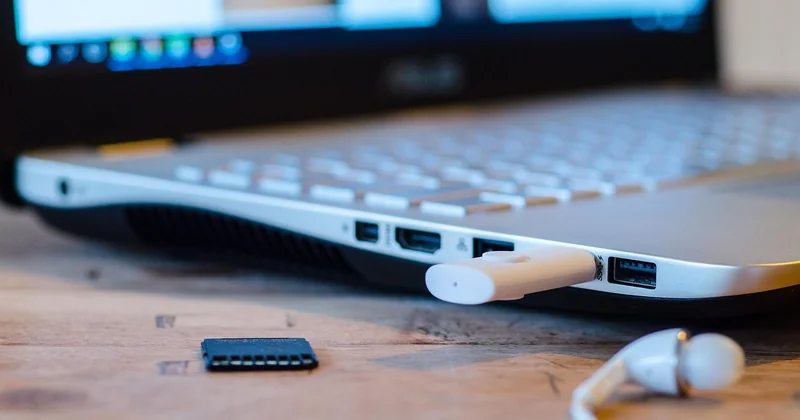
No mouse or keyboard: how to get control back
This is the scenario almost nobody explains properly. You can't uninstall a driver if you can't click. Options, in order of practicality:
- PS/2 port, if your desktop has one. An old PS/2 keyboard or a USB-to-PS/2 adapter gets you in.
- On-Screen Keyboard via Settings → Accessibility → Keyboard, navigated with the arrow keys and Tab if a keyboard still partly works, or through the Ease of Access button on the sign-in screen.
- Safe Mode: hold Shift while choosing Restart from the power menu. Safe Mode loads a minimal driver set; if the ports work there, the fault is a driver or a recent update.
- Remote access, if Remote Desktop was already enabled on the machine—connect from another PC and do the driver work from there.
Which brings up an obvious warning: if you have no input at all and no PS/2, do not start uninstalling things blind. Get a working keyboard first.
Is there a way to reset USB ports?
Yes, at two levels. The software reset is the driver reinstallation described above—uninstall the controllers in Device Manager, reboot, let Windows rebuild them. The hardware reset is a full power cycle: shut the machine down completely, unplug it, and if it's a laptop with a removable battery, take the battery out. Then hold the power button for around fifteen seconds to drain the residual charge. On a desktop, that drains the standby rail that keeps the USB controller partly powered. I've had this bring back a dead front-panel port that no amount of driver fiddling would touch.
And if the ports give power but never enumerate, even after a full power cycle, the controller is likely failing. That's a motherboard repair or a PCIe USB card—cheap, and a reasonable workaround on a desktop.
USB device not recognized on a phone
Phones fail differently, so the method changes. When you connect an Android phone to a computer and it charges but isn't detected, the cable is the first suspect—many bundled cables are charge-only and carry no data lines at all. Swap for a cable you've actually transferred files with before.
Next, the phone has to be told what to do. Pull down the notification shade after connecting and look for the USB notification; select File transfer / MTP rather than "Charging only". On many Android builds, that notification is hidden until you tap the charging notice. On iPhones, tap Trust on the prompt and unlock the screen—a locked iPhone won't expose its storage.
If the port is loose, dirty, or the phone reports moisture in the connector, stop and clean it dry before plugging anything in. Pushing a wet connector invites corrosion, and that's a repair, not a setting.
| Symptom | Most likely cause | First move |
|---|---|---|
| Device works on other ports only | That port is faulty | Inspect and clean the connector |
| LED lights up, no detection | Data pins or cable | Swap the cable |
| All ports dead together | Hub or controller failure | Full power cycle, then driver rebuild |
| Works in Safe Mode only | Driver or update conflict | Reinstall the USB controllers |
| Phone charges but isn't seen | Charge-only cable or MTP not selected | New cable, then set File transfer |
What to do if none of this works
If you've swapped cables, cleaned the connectors, power-cycled the machine, and rebuilt the USB stack, and Windows still ignores the device, the remaining suspects are narrowed down to two: a failing controller on the motherboard, or a failing device. Test the device on a second computer to settle it.
One last detail people miss: a USB hub without its own power supply, with a keyboard, a mouse, and an external drive plugged in, will often drop the drive silently. The port isn't broken—it's starved. Powered hubs exist for a reason.
The lesson I keep relearning is that USB problems are diagnosed, not fixed. Every step above exists to remove one possibility. Do them in order, note the result of each, and by the fourth test you'll know whether you're looking at a cable, a port, a driver, or a motherboard—and that's the only thing standing between you and a working port.