The call came on a Tuesday. A client of mine—a freelance photographer I'd worked with on a few projects—had just lost four years of work. Not stolen, not corrupted by some exotic virus. Her external drive had simply stopped spinning one morning, and that drive was the only place her raw files lived. No cloud copy. No second disk. Nothing.
I asked her the question I now ask everyone: "Where's your backup?" There was a long pause. Then: "I thought the drive was the backup." That sentence has stayed with me, because it captures the single most common misunderstanding about protecting files. A second copy is not a backup if it's the only copy you trust. A backup is a system, not a device.
So if you want to know how to back up your data and never lose files again, the honest answer is that no tool will save you on its own. What saves you is a small set of rules, applied consistently, plus the discipline to test them. Here's what I've learned from doing this badly, then doing it well.
Key Takeaways
- A backup only counts when the copy is separate, verified, and restorable—not just present.
- The 3-2-1 rule (three copies, two media types, one offsite) is the backbone of any serious setup.
- Most data loss isn't dramatic. It's a drive that dies quietly, a sync that overwrites the wrong direction, or ransomware that encrypts your connected backup too.
- An untested backup is a hope, not a plan. Restoring one file from a copy is the only proof that matters.
- You do not need enterprise software. You need a repeatable routine that runs without you thinking about it.
Why a second copy isn't enough
The most expensive mistake I ever made involved a drive I trusted. I'd been copying my working folder to a USB disk every Friday for months. Felt responsible. Felt organized. Then I opened a document one day, made a bad edit, saved it, and realized the version I actually wanted was three weeks old—because my "backup" had been overwriting the good copy with the bad one the whole time.
That's the trap. Copying is not protecting. If your backup updates the moment your main files change, then a mistake, a deletion, or a malware infection propagates instantly to both places. You've built a mirror, not a safety net.
Three things every backup actually needs
Strip away the marketing and a real backup gives you three properties. Miss any one and you're exposed:
- Separation—the copy lives somewhere the original can't reach, whether that's a different disk, a different machine, or a different building.
- Versioning—you can go back in time, not just forward. If a file gets corrupted today, yesterday's version must still exist.
- Verification—you have actually opened a restored file and confirmed it works.
Most people get separation right and skip the other two entirely. That's why "I have a backup" so often turns into "the backup didn't help."
The 3-2-1 rule, and why it still holds up in 2026
The 3-2-1 rule has been around for years, and it survives because it's boringly effective. I've tried fancier schemes and come back to it every time.
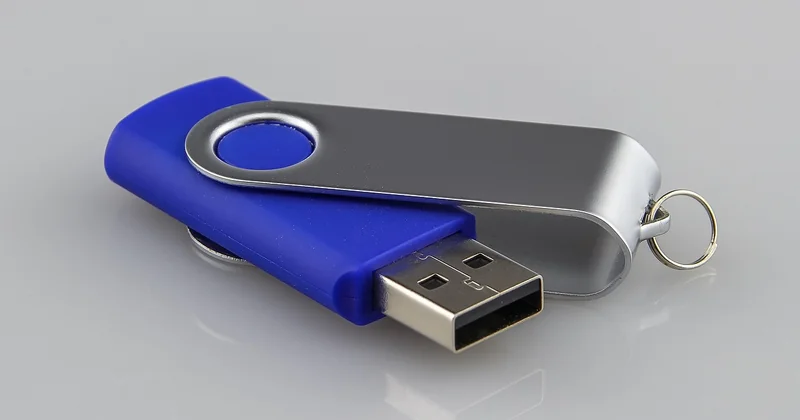
Here's the shape of it:
- Three copies of any important file—the original plus two backups.
- Two different types of storage, so a single failure mode (a dying drive brand, a cloud outage) can't take both down.
- One copy offsite, physically away from your home or office.
A setup that respects this might look like: your laptop holds the working files, a local external drive holds the fast local copy, and a cloud service holds the offsite copy. Two media types, three copies, one of them far away. Simple.
A comparison of common backup destinations
| Destination | Good for | Watch out for |
|---|---|---|
| External drive | Fast restores, large files like video | Dies without warning; useless if it's your only copy |
| Cloud storage | Offsite protection, sync across devices | Sync can overwrite good files with bad ones; check your settings |
| NAS (network drive) | Whole-home or small-office backups | More setup; a single point of failure unless mirrored |
| Removable SSD kept elsewhere | Cheap offsite, air-gapped from malware | You have to remember to update it |
Is the 3-2-1 rule outdated?
No—but it's incomplete on its own. The modern addition people argue about is a fourth copy that stays offline or "air-gapped," meaning it's not connected when you're not actively using it. The reason is ransomware: if a malicious program encrypts your connected drives, an offline copy is untouched. So think of it as 3-2-1 plus one disconnected copy for anything you can't afford to lose. In my view, for personal files that extra copy is optional; for a business, I'd call it non-negotiable.
How to back up your data on a phone
Phones are where most people's irreplaceable data actually lives—photos, messages, the notes app you've been dumping ideas into for years. The good news is that phone backup has gotten genuinely easy, so there's little excuse.
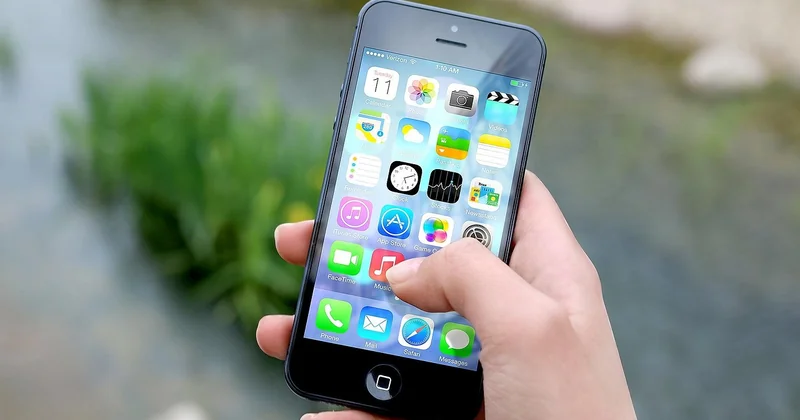
How to back up my iPhone
Two paths, and you should probably pick one and stick to it. The cloud route: go into Settings, tap your name at the top, then iCloud, then iCloud Backup, and turn it on. It runs automatically when your phone is charging and on Wi-Fi. The local route: plug the phone into a computer and back it up through Finder or the Apple Devices app, which gives you a full copy on that machine—useful when your cloud storage is nearly full.
One thing I'd stress: check that the cloud backup is actually completing. I've seen backups silently stop for weeks because a device ran out of storage. Open the backup settings and confirm the date of the last successful one. If it's older than a few days, something's wrong.
How to back up your data on a Samsung phone
Samsung phones come with their own tools, and they work well if you use them. Open Settings, find Accounts and Backup, and you'll see two options worth knowing: a Samsung Cloud backup (limited free space, covers messages and settings) and Google backup. You can also use Samsung Smart Switch to pull everything onto a computer or a new phone over a cable.
My advice is to run two layers. Let Google handle your photos and contacts automatically, and use a cable-based backup occasionally for the stuff that matters most. Automatic backups protect you from the ordinary bad day; the manual copy protects you when an account gets locked or a sync goes sideways.
How to back up data on a Windows PC
Windows has a built-in tool that most people never open, and it does more than it gets credit for. Search for "File History" and you'll find a feature that copies your personal folders to an external drive on a schedule, keeping old versions. Turn it on, point it at a drive with enough space, and let it run.

For a full image—an exact copy of your entire system you can restore everything from—look at the backup tools built into your drive manufacturer's software, or the legacy system image option. That's heavier and slower, but if your goal is to recover a whole machine after a crash, it's the difference between reinstalling everything from scratch and being back in an hour.
Which files to include in a backup
If you're setting up a backup, whether for yourself or a small team, include these categories:
- Personal documents and any folder you actively work in
- Photos and videos, including the ones on your phone
- Email that lives on your device rather than in the cloud
- Password manager exports and recovery codes, stored securely
- Financial records, contracts, and anything with legal weight
- Configurations and license keys for software you rely on
- Anything you've made that would take more than a day to recreate
The last item is the real filter. If you could rebuild it in an afternoon, skip it. If losing it would cost you a week or a client, it belongs in the backup.
The part everyone skips: testing your backup
Here's where I'll be blunt, because I've earned the right to be. For two years I ran backups I never once verified. They looked fine. They reported success. Then a drive failed, I went to restore, and discovered the archive was half-empty because of a misconfigured folder path. Two years of "protection" that protected nothing.
Now I test on a schedule. Once a quarter—first weekend, ten minutes—I pick a random file from the backup, restore it to a scratch folder, and open it. That's it. Sometimes I'll delete a throwaway file on purpose and confirm I can pull it back. The point isn't the file. The point is knowing the chain works before you need it in a panic.
Common mistakes that defeat a backup
Watch for these, because each one has bitten me or someone I know:
- Backing up to the same drive that holds the originals. If that drive dies, both copies go.
- Relying on sync alone. Sync mirrors your mistakes in both directions.
- Never checking the logs. Silent failures are the norm, not the exception.
- Keeping the backup permanently connected. Ransomware encrypts what it can see.
- Assuming someone else handles it. On a team, "someone" usually means "no one."
How often should you back up?
The honest answer is "as often as it would hurt to lose the last change." For personal photos, a daily automatic backup is plenty. For active work files, hourly or continuous is worth it, and most cloud tools do that without you noticing. The catch is that frequency without versioning just gives you a fresher copy of your worst mistake.
So the rule I've settled on: continuous for the files I touch daily, weekly for the archives, and a quarterly test that proves the whole thing still works. It sounds like a lot. In practice it's a few minutes of setup and then nothing—which is exactly how a good system should feel.
What "never losing files again" really means
You will never reach a point where you can stop thinking about this entirely. That's not failure—it's just how it works. The goal isn't a magic setup that runs forever untended. The goal is a routine so simple you'll actually keep doing it, plus the humility to test it now and then.
My photographer client got most of her work back through a recovery service, at real cost, and now runs three copies without being asked. The drive that failed is still in a drawer, dead and useless, and she keeps it as a reminder. I'd rather you skip the lesson and take the habit: pick your two destinations today, turn on the automatic backup, and put a date on your calendar to restore one file and make sure you can.
Because the question isn't whether a drive will fail. It's whether you'll find out before or after it matters.