Why your computer won't turn on, and how to actually fix it
The worst repair job I ever took on was a desktop that did nothing. No fans. No light. No beep. The owner had already replaced the power cable, then the surge protector, then—I'm not exaggerating—the wall outlet itself. Three hours of electrical work, and the machine was still a brick. It turned out to be a dead power supply unit, and the whole diagnosis took me eleven minutes once I stopped guessing and started testing.
That's the trap with a computer that won't turn on. Everyone starts swapping parts before they've figured out which stage of the power chain is broken. So let's walk through how to fix a computer that won't turn on in the right order, because the order is everything.
Key takeaways
- A machine that shows no signs of life at all points to power delivery, not software.
- A machine with a power light but a black screen is a completely different problem, and you should not treat them the same way.
- The power drain procedure differs depending on whether your laptop has a removable battery or not.
- Unplugging every accessory before you diagnose anything saves an absurd amount of time.
- If the power supply itself is dead on a desktop, no amount of button-holding will bring it back.
First, split the problem in two
Before you touch a single cable, answer one question: is there any sign of life whatsoever? Any fan spin, any LED, any click, any flicker. This single observation cuts your possible causes roughly in half, and skipping it is the most common mistake I see.
No life at all: no fans, no lights, nothing
This is a power delivery problem. The machine isn't refusing to boot—it isn't receiving electricity in a usable form. On a desktop, that means the wall, the cable, the power supply unit, or the motherboard's power connection. On a laptop, it means the charger, the charging port, or the battery.
Power light is on but the screen stays black
Different beast entirely. The system is getting power, so the fault sits somewhere in the boot chain: display output, RAM seating, the graphics card, or a failed POST. I've seen people replace perfectly healthy power supplies for this. Don't be that person.
Working the power chain, from cheapest to most annoying
Here's the sequence I use on every machine, and it's saved me from buying parts I didn't need more times than I can count.

- Test the outlet with something else. A lamp, a phone charger, anything. Thirty seconds, and it eliminates an entire category of stupidity.
- Check the cable at both ends. On laptops, wiggle the connector gently. If the charging LED flickers when you move it, you've just found a damaged port or a frayed cable.
- Unplug every single accessory. Printer, external drive, USB hub, second monitor, that weird dongle you forgot about. A shorted USB device can stop a machine from powering on, and I once spent forty minutes on a laptop that came back to life the moment I removed a faulty SD card.
- Try a known-good charger. For laptops, this is the fastest test you have. Match the voltage and wattage—an underpowered charger may light the LED and still refuse to boot.
Nine times out of ten, the fix is somewhere in that list. The tenth time, you go deeper.
The power drain, done properly
Residual charge in the capacitors can genuinely lock a machine into a dead state. The standard advice—hold the power button for thirty seconds—is correct, but the procedure around it matters enormously, and most guides skip the part where it depends on your battery type.
If your laptop has a removable battery
Shut it down if it responds at all. Unplug the charger. Pull the battery out. Now hold the power button for a full thirty seconds with the battery still removed—this drains the residual charge from the board. Put the battery back, plug in the charger, and try again. I've revived machines this way that had been sitting dead for weeks.
If your battery is sealed inside
Do not open the case unless you're comfortable doing so and your warranty allows it. Instead: unplug the charger, then hold the power button for a solid sixty seconds. Longer than you think. Then reconnect and try. On some models there's a tiny pinhole reset button on the underside—if yours has one, press it with a paperclip while unplugged.
Desktop-specific: how to tell if your power supply is dead
This is the part missing from almost every troubleshooting page I've read, and it's the one that actually matters when you've ruled out the cable and the outlet.
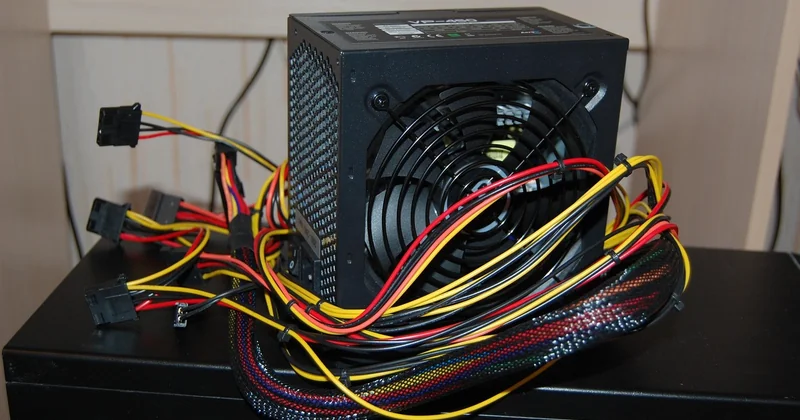
Inside a desktop, the power supply unit converts wall current into the voltages the board needs. When it fails, it usually fails silently. The reliable test requires a paperclip and a bit of nerve: unplug the 24-pin connector from the motherboard, locate the green wire (or, on modern units, the single wire on the latch side), and bridge it to any adjacent black wire. Plug the PSU back in and flip its switch. If the fan spins, the unit lives and your problem is elsewhere. If nothing happens, the PSU is your culprit.
Do this with the unit disconnected from everything else, and don't poke around inside it. Capacitors in a PSU hold a charge that can hurt you badly.
| Symptom | Most likely cause | Your next move |
|---|---|---|
| Nothing at all, desktop | Dead PSU or wall power | Test outlet, then PSU with paperclip method |
| Nothing at all, laptop | Charger, port, or battery | Swap charger, then power drain |
| Light on, black screen | RAM, GPU, or display | Reseat RAM, test external monitor |
| Fans spin, then stop | POST failure or thermal cutout | Clean vents, reseat components |
| Random shutdowns after starting | Failing PSU under load | Replace PSU, it won't heal itself |
When the machine powers on but Windows won't load
If you're seeing the manufacturer logo and then nothing—or a spinning circle that never ends—you're dealing with a boot problem, not a power problem. The hardware is fine. Your operating system isn't.
Getting into recovery
Interrupt the boot three times in a row by holding the power button during startup. On the fourth attempt, Windows should drop into its recovery environment automatically. From there, the options that actually work, in order of how often they help:
- Startup Repair, which fixes corrupted boot files more often than people give it credit for
- Uninstall the most recent update, if the failure started right after one
- System Restore, if you have a restore point from before the trouble began
- Command-line repair of the boot record, for the stubborn cases
This applies to both recent Windows versions. The menus look slightly different, but the underlying tools are the same, and I've used Startup Repair to rescue machines that seemed completely gone.
A note on brand-specific quirks
Dell machines, in my experience, are unusually good at telling you what's wrong if you let them. Many models run a built-in diagnostic: hold Fn and press the power button, and the machine will blink a pattern of amber and white lights. Count the blinks, look up that pattern, and you'll often get a direct answer—bad RAM, bad motherboard, no power detected. It's the single most useful feature on a machine that won't start, and most owners never use it.

Other manufacturers hide similar tools behind different key combos. Worth five minutes of searching your exact model.
The point where you should stop
You can reseat RAM. You can swap a charger. You can run a power drain and clean dust out of a fan. That's the honest boundary of what a careful non-technician should do.
Beyond that—motherboard-level faults, swollen batteries, a laptop that gets warm but never boots—you're risking more than you're saving. A swollen battery is a fire hazard, full stop, and no article should convince you otherwise. I've watched someone try to "just push through" on a bulging cell, and it ended with a phone call to a repair shop and a much larger bill than the original diagnosis would have cost.
What I'd actually do tomorrow morning
If my own machine died tonight, here's the order: outlet, cable, accessories, charger swap, power drain, then the PSU test if it's a desktop. No skipping. No buying parts on a hunch.
The frustrating truth is that a computer refusing to turn on is rarely mysterious. It's just that the answer is buried under five obvious things nobody checks because they assume the problem is complicated. It usually isn't. It's just tedious—and the tedious path is the one that works.