Someone asked me last week why their new $500 card felt slower than the $300 one they'd returned. The answer took me thirty seconds: they'd paired it with a six-year-old CPU and a 450W power supply that was screaming for mercy under load. The card was fine. Everything around it wasn't.
I've built and rebuilt enough machines at this point—for myself, for friends who call me at 11pm, for a small studio that needed four workstations in a week—to know that a graphics card buying guide for beginners fails the moment it treats the GPU as a standalone purchase. It isn't. It's the loudest, hungriest, most expensive component in the box, and it plays by rules the rest of your system has to follow.
Here's what I wish someone had told me before I wasted money on a card my motherboard couldn't feed properly.
Key Takeaways
- Match the card to your monitor first—resolution and refresh rate decide everything else.
- PSU wattage and the 12V-2x6 connector are the most common deal-breakers for beginners.
- 12GB is comfortable at 1080p, tight at 1440p; 16GB is the current sweet spot.
- 32GB of VRAM is pointless for gaming—it's for AI models and 3D rendering.
- Upscalers like DLSS and FSR can extend a mid-range card's useful life by two years or more.
- A used mining card is almost never worth the savings.
What actually makes a good graphics card for beginners
The honest answer is: the cheapest card that hits your target frame rate at your monitor's resolution without starving your power supply. That's it. Everything else is noise.
I watched a friend buy a top-tier card for a 1080p 60Hz monitor. He spent nearly three times what a mid-range model would have cost and saw zero difference in the games he actually played. The bottleneck wasn't the GPU. It was the display, and he'd never thought about it.
Start with your monitor, not the card
Your monitor sets the ceiling. A 1080p panel at 60Hz physically cannot show you more than 60 frames per second, no matter how fast the card renders them. Buying a card that pushes 140 fps into that screen is money burned.
So before you open a single product page, answer three questions:
- What resolution does my monitor run at? (1080p, 1440p, 4K)
- What's its refresh rate? (60Hz, 144Hz, 240Hz)
- What games do I actually play, and at what settings do I want them?
Once you know those three things, the shopping list narrows fast. A 1080p 144Hz competitive shooter player needs something completely different from a 4K 60Hz single-player enthusiast. Same budget, different card.
The CPU shadow nobody warns you about
Here's a thing that trips up almost every first-time builder: a weak CPU can hold back a strong GPU. It's called a bottleneck, and it doesn't care how much you spent.
If your processor can only feed 90 frames per second to the card, the card will sit there at 60% utilization while you stare at a stuttering frame rate. I've seen this exact scenario twice in the past year—both times with people convinced their new GPU was defective.
Rough rule: if your CPU is more than four or five generations old and you're buying a mid-range card or above, budget for a CPU upgrade too. Otherwise you're paying for performance you can't reach.
How to decide which graphics card to buy
You don't decide by reading spec sheets. You decide by working backward from the games you play and the budget you can actually spend.
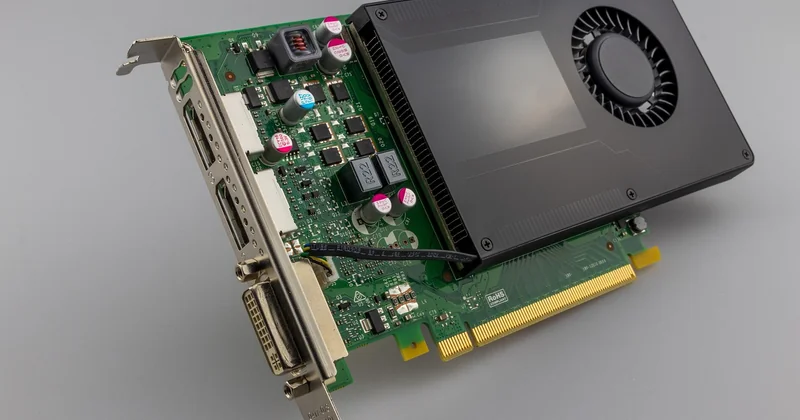
I use a three-step filter that has never steered me wrong, and it works whether you're spending $250 or $900.
Step 1: set a hard budget number first
Walking into a store or a site without a number in your head is how you end up spending 40% more than planned. In my experience, the jump from one tier to the next is often $100–150, and the value proposition flips at each step.
Rough price bands as they stand right now:
- Entry (~$200–300): fine for 1080p at medium settings, older titles, esports.
- Mid-range (~$400–600): the sweet spot. Handles 1440p comfortably and 1080p at high refresh.
- Upper mid-range (~$650–900): 1440p high refresh, entry into 4K with upscaling.
- Anything above that is enthusiast territory and rarely makes sense for a first build.
Fix your number. Then find the best card at that number. Not the other way around.
Step 2: check the two killers—PSU and connector
This is where first-time buyers get burned, and it's the part most guides gloss over. Two things will stop your build dead:
- Power supply wattage. A modern mid-range card can pull 200–250W under load. Pair that with a CPU that draws 120W and everything else, and a 500W unit is running at its limit. Add headroom, always.
- The power connector type. Many current cards use the 12V-2x6 connector (the revised version of the older 12VHPWR). If your PSU only has traditional 8-pin PCIe cables, you'll need an adapter—or a new PSU.
A PSU that's undersized doesn't just cause crashes. Under sustained load it can degrade, and in the worst cases it can damage components. I've replaced three PSUs for people who ignored this step. Not once was the GPU itself the problem.
Step 3: validate with real game tests
Product listings quote theoretical throughput. What you need is frame rate in the actual games you play. Search for benchmarks of the specific card in those specific titles, and look at the 1% lows—not just the average fps. The 1% low is what you feel as stutter, and it matters more than the headline number.
Should I get 12GB or 16GB GPU?
For most people buying right now, 16GB is the safer choice if the price gap is small—say under $80. But 12GB is still perfectly fine at 1080p, and even at 1440p if you're willing to dial back texture settings in the newest titles.
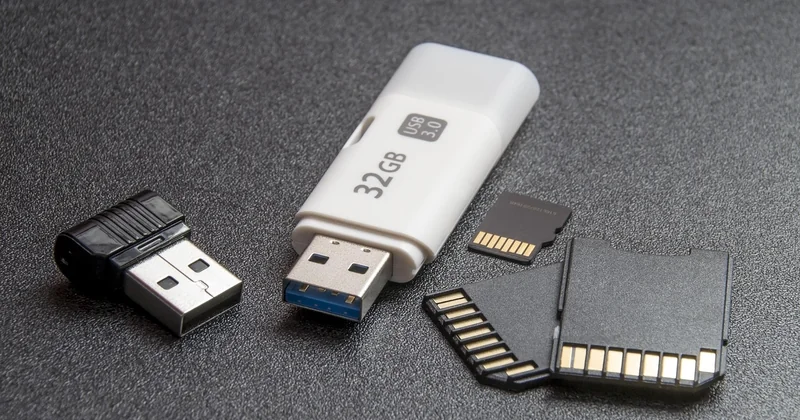
Here's why the difference matters. VRAM holds the textures and geometry the card is actively working with. When you run out, the card has to swap data to system memory, and performance collapses—often by 30% or more, sometimes with visible hitching. It's not a graceful degradation. It's a cliff.
| Resolution | Comfortable VRAM | What happens if you go lower |
|---|---|---|
| 1080p | 8–12GB | Mostly fine; newest titles need texture settings trimmed |
| 1440p | 12–16GB | 12GB works today, gets tight within 2–3 years |
| 4K | 16–24GB | Below 16GB you'll hit the VRAM cliff regularly |
My own take: if you're buying a card you intend to keep for four years at 1440p, spend the extra on 16GB. I've watched people regret 8GB cards bought two years ago far more than they regretted paying slightly more upfront.
Is 32gb of VRAM overkill?
For gaming, yes—completely. No current game at any resolution comes close to needing 32GB. You'd be paying a steep premium for capacity that stays empty.
Where 32GB makes sense is outside gaming: running large AI models locally, heavy 3D rendering, video work with high-resolution timelines. If that's your workflow, the capacity pays for itself. If you're building a gaming PC, it's money on the table.
Beginner traps that cost real money
Two of these bit me personally. The rest I've watched happen to people I've helped build.
The used mining card gamble
Cards that spent two years running at full load in a mining rig have degraded thermal paste, worn fans, and sometimes memory that's been stressed well beyond normal use. The discount looks attractive. The failure rate doesn't.
If you buy used, buy from someone who can show you the card running, and test it the same day. I've had one good used purchase and one that died at week six. Even odds aren't good enough on a component this expensive.
Ignoring upscalers in your value math
DLSS and FSR let a card render at a lower internal resolution and reconstruct the image at your display's resolution. The practical effect: a mid-range card can hit frame rates that used to require a tier above it. Frame generation goes further, inserting intermediate frames.
This changes the buying decision. A $450 card with good upscaling support can outperform a $600 card without it, in the games that support the feature. Factor that into your comparison, not just raw hardware specs.
Buying for a monitor you don't have yet
It's tempting to buy the card for the 4K display you plan to get someday. Don't. Buy for the setup on your desk today. Upgrade paths exist, and a card that's perfect for your current monitor is worth more than one waiting for a screen that may never arrive.
The short version
Match the card to your monitor. Check your power supply and connector before anything else. Aim for 16GB if the price gap is reasonable and you're staying at 1440p or above. Skip 32GB unless you're doing AI or rendering work. And validate with benchmarks in the games you actually play, not the ones in the marketing slides.
The best card isn't the fastest one. It's the one your system can feed properly, that your monitor can show, and that you'll still be happy with in three years. That's a lower bar than the spec sheets suggest—and a much more useful one.