How to set up a secure home network (without losing a weekend)
The question I get most often from friends isn't "which router should I buy?" It's this: "How do I know if my home network is actually secure?" Fair point. You can follow ten checklists and still have no idea whether any of it worked.
Here's the uncomfortable truth I learned the hard way: a home network isn't secured by the box your internet provider hands you and forgets. It's secured by about forty minutes of deliberate work, done once, then left alone. That's it.
I'm going to walk you through it the way I'd walk a friend through it over coffee. No jargon dumps. No "consult a professional." Just the actual order I use, the mistakes I made, and how to confirm you're done.
Key Takeaways
- Most home routers ship with an admin password and Wi-Fi key that anyone can look up online. Changing both is step one, not step five.
- WPA3 encryption is the current standard; if your router only offers WPA2, enable that and plan to replace the router when it dies.
- You should be able to list every device on your network by name. If you can't identify one, that's the signal to dig.
- A separate Wi-Fi network for guests and smart devices costs nothing and removes most of your real risk.
- Firmware updates fix security holes in the router itself. Auto-update is worth enabling and rarely enabled by default.
- This is a one-time project. Revisit it twice a year, for ten minutes, and you're ahead of almost everyone.
Start with the box everyone ignores: your router's admin panel
Your router has two doors. One is the Wi-Fi password you type on your phone. The other is the admin panel — the settings page where you control everything — and almost nobody bothers with it.
Manufacturers ship these with defaults like admin / admin or admin / password. They're printed on the sticker and, more to the point, published in every manual. Anyone within Wi-Fi range who knows the model can try them. This is the single most common way home networks get taken over, and it's also the easiest thing to fix.
How to find it
Open a browser and type your router's local address. Nine times out of ten it's one of these:
- 192.168.1.1
- 192.168.0.1
- A hostname like routerlogin.net or the brand's own address
If neither works, on Windows open Command Prompt and run ipconfig. Look for "Default Gateway" — that number is your router. On a Mac, it's under System Settings, Network, then Details next to your connection.
What to change, in order
- Log in with the sticker credentials.
- Change the admin password to something long and unique. Not your Wi-Fi password. A different one.
- If your provider locked the admin account so you can't change it, call them. Some will unlock it. Some won't — that's a real limitation worth knowing about before you blame yourself.
- Disable remote management. It lets someone administer your router from outside your home. You almost certainly don't need it.
I once spent two evenings debugging "slow internet" that turned out to be a neighbor's device connected to my network through default credentials. Forty minutes of setup would have saved me the whole mess.
Wi-Fi encryption: the one setting that actually matters
Encryption scrambles what travels between your devices and the router. Without it, anyone in range can read your traffic. Most people have it on by default. The question is which version.
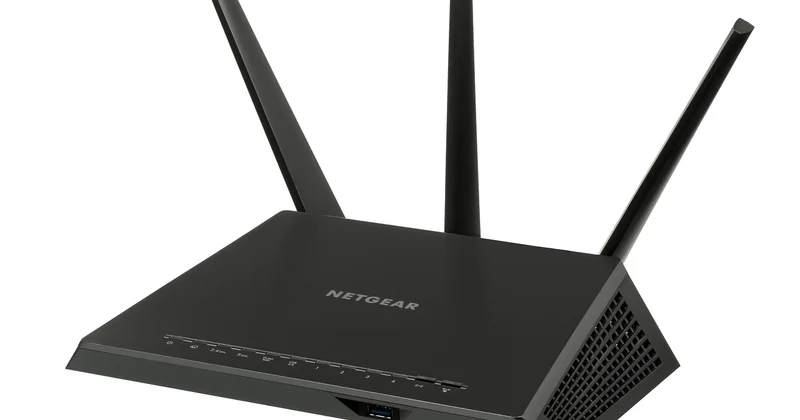
WPA3 is the current standard. WPA2 is the older one, still widely used and still vastly better than nothing. If your router supports WPA3, switch to it. If it only does WPA2, use that and don't lose sleep.
A quick comparison
| Setting | What it does | Your action |
|---|---|---|
| WPA3 | Modern encryption, resists offline password guessing | Enable if available |
| WPA2 | Older but reliable encryption | Use it if WPA3 isn't offered |
| WEP | Broken for years; crackable in minutes | Turn it off immediately |
| Open network | No encryption at all | Never, for your main network |
One more thing people forget: your Wi-Fi password should be a passphrase, not a word with a number on the end. Four unrelated words strung together are both stronger and easier to type than something like Fluffy2019!. Length beats complexity every time.
What a sensible home network setup actually looks like
You don't need a rack of equipment. You need a modem, a router that does the thinking, and a clear idea of who lives on which network.
Here's the arrangement I use and recommend to beginners:
- Main Wi-Fi: your computers, phones, and anything that holds personal data.
- Guest Wi-Fi: visitors, plus a growing list of devices you don't fully trust.
- Wired ports (if your router has them): desktop PCs, a NAS if you have one, anything that stays put.
That second network is the trick most guides bury. Smart plugs, cheap cameras, robot vacuums, that thermostat from a brand nobody's heard of — these devices are often the weakest link. They run old software, they're rarely patched, and they phone home to servers you don't control. Putting them on a separate network means that when one of them gets compromised, whoever's behind it doesn't automatically have a path to your laptop.
Setting this up is usually one checkbox on the router's Wi-Fi page: "Enable guest network." Give it a different name and a different password. Done.
The check that matters more than any checklist
Here's the part I wish someone had told me years ago. Security isn't a list of settings you tick — it's knowing what's on your network and noticing when that changes.
Every decent router has a page listing connected devices. It's usually called something like "Attached Devices," "Connected Clients," or "Device List." Open it right now.
You should be able to name each entry: "that's my phone, that's the TV, that's the laptop." If something shows up that you can't account for, you don't panic — you investigate. Unplug one device at a time and watch the list. The entry that vanishes is your unknown device.
In my flat, this turned up a forgotten smart speaker I'd bought two years earlier and never set up properly. Harmless, but it had been sitting on the network with an unpatched firmware the whole time. I'd rather find that on my own terms than by accident.
Firmware updates and the password habit that saves you
Your router runs software. Software has flaws. Flaws get patched. This cycle is invisible to you and completely routine — unless you never update.
Find the firmware section in your admin panel and turn on automatic updates if the option exists. If it doesn't, set a reminder twice a year to check manually. It takes three minutes.
Why you need a password manager, not willpower
You'll change four or five passwords during this setup. That's already more than anyone can hold in their head. This is not a character flaw — it's arithmetic.
A password manager generates long random strings, stores them, and fills them in for you. You only need to remember one master password. The catch? You have to back it up. If you lose access and haven't exported a recovery file, you'll be resetting everything. I learned that one the painful way.
Two rules I follow now:
- The router admin password is unique and lives in the manager.
- Anything I can't reasonably secure — a smart bulb, say — goes on the guest network. No exceptions.
Mistakes I made so you don't have to
Turning on every feature at once. Some routers let you disable SSID broadcast, filter MAC addresses, and set up complex rules. Most of this adds friction without meaningful security. I disabled SSID broadcast for a month and spent that month manually reconnecting devices. Waste of time. Encryption and a strong password do the real work.
Trusting the provider's router to do everything. Some ISP-supplied routers are perfectly fine. Others are locked down to the point where you can't change the admin password at all. If yours can't be configured, buying your own and putting the provider's box into "bridge mode" is the clean fix. It's more work up front and then it's over.
Forgetting the physical side. If there's an ethernet port in a shared space and someone can plug into it, none of the above applies. Rare in a home, common in shared buildings. Worth a thought.
The order that actually works
Ten-minute version, do it tonight:
- Log into the admin panel.
- Change the admin password.
- Confirm Wi-Fi encryption is WPA3 or WPA2.
- Turn on the guest network and move your smart devices to it.
- Enable automatic firmware updates.
That's the whole project for most homes. Twenty minutes if you're organized, an hour if you're not.
What's left isn't more settings — it's a habit. Twice a year, open the device list and check that you recognize everything on it. When something new appears that you didn't add, you'll know. That quiet, boring ritual is what separates a network you set up once from one you actually understand.
And honestly? The second one is the only kind worth having.